> For the complete documentation index, see [llms.txt](https://docs.racemap.com/llms.txt). Markdown versions of documentation pages are available by appending `.md` to page URLs; this page is available as [Markdown](https://docs.racemap.com/live-tracking/share-view.md).
# Share a view
Share exactly what you are looking at on the tracking map — your favorites, the moment in the race, and the current map view — as one link.
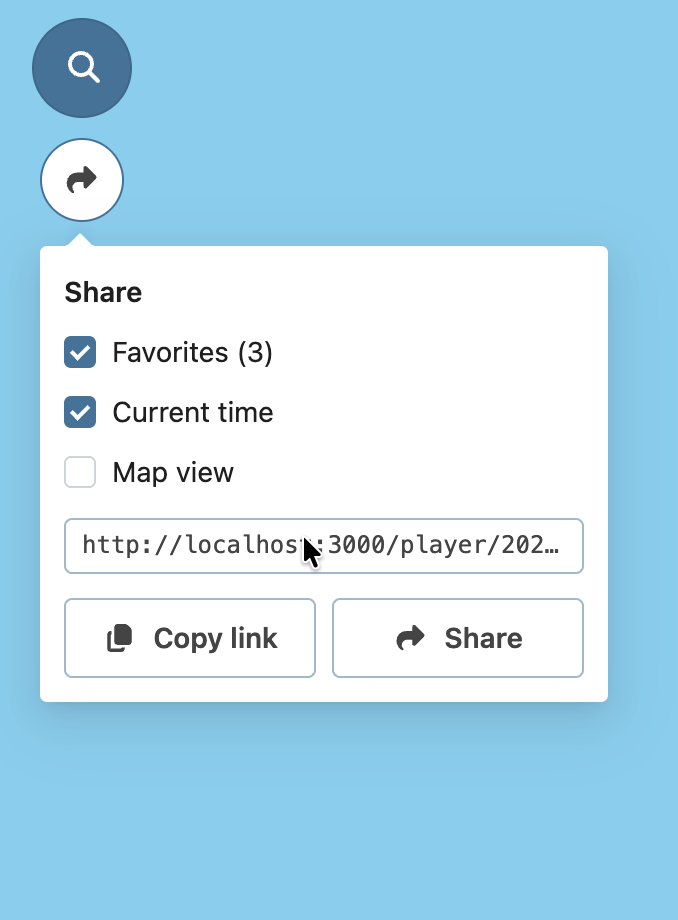
The share button sits below the search button in the top left corner of the tracking map. It builds a link to exactly what you are looking at, so the person opening it starts where you are.
Tick what the link should carry:
* **Favorites** — the participants, points of interest and tracks you selected. The number in brackets tells you how many.
* **Current time** — the moment the map is showing.
* **Map view** — the exact section of the map you have in front of you, including the zoom level.
The link updates as you tick the boxes, so you always see what you are about to send. **Copy link** puts it in your clipboard, and on devices that support it, **Share** opens the system share sheet to hand it straight to a messenger or mail app.
{% hint style="info" %}
Nothing is shared until you copy or send the link. Ticking a box only changes the link.
{% endhint %}
### Sharing a moment of a live race
During a live race **Current time** is switched off by default, and that is usually what you want: the recipient opens the map **live**, at whatever is happening when they click.
Switch it on to point at a specific moment instead — a sprint finish, a crash, an overtake. The recipient then arrives at that moment rather than live, and the race plays on from there.
### Sharing the map view
**Map view** is switched off by default because it changes how the map behaves for the recipient.
Normally the map follows the selected participants and keeps them in view. A link that carries the map view opens on exactly the section you framed and **stays there**, so what you wanted to show does not scroll out of sight. The recipient can hand control back to the map at any time with the pin button on the right of the map.
{% hint style="success" %}
The zoom is stored independently of the screen size, so a link made on a desktop shows the same section of the map on a phone.
{% endhint %}
### The link itself
The share dialog writes ordinary URL parameters, so you can also build these links by hand, or generate them from your own system.
{% content-ref url="/pages/rBoVsfgfgJFKOFBJ6wfa" %}
[URL parameters](/live-tracking/url-parameters.md)
{% endcontent-ref %}
Your own selections are remembered in your browser between visits, separately from any link you share.
{% content-ref url="/pages/o5d8SSqsmOVeuNLVSQ0b" %}
[A map that remembers](/live-tracking/remembered-view.md)
{% endcontent-ref %}
---
# Agent Instructions
This documentation is published with GitBook. GitBook is the documentation platform designed so that both humans and AI agents can read, navigate, and reason over technical content effectively. Learn more at gitbook.com.
## Querying This Documentation
If you need additional information that is not directly available in this page, you can query the documentation dynamically by asking a question.
Perform an HTTP GET request on the current page URL with the `ask` query parameter, and the optional `goal` query parameter:
```
GET https://docs.racemap.com/live-tracking/share-view.md?ask=&goal=
```
`ask` is the immediate question: it should be specific, self-contained, and written in natural language.
`goal` is optional and describes the broader end goal you are ultimately trying to accomplish on behalf of the user. GitBook uses it to tailor the answer towards what is most useful for that goal.
The response will contain a direct answer to the question and relevant excerpts and sources from the documentation.
Use this mechanism when the answer is not explicitly present in the current page, you need clarification or additional context, or you want to retrieve related documentation sections.